 Beeking
BEEKING SEARCH / SHOPER
Documentation
See what each feature changes, how customers experience it and where to configure it.
Open Beeking Search from installed applications in your Shoper admin. Feature availability depends on the app configuration and store theme.
01
Statistics
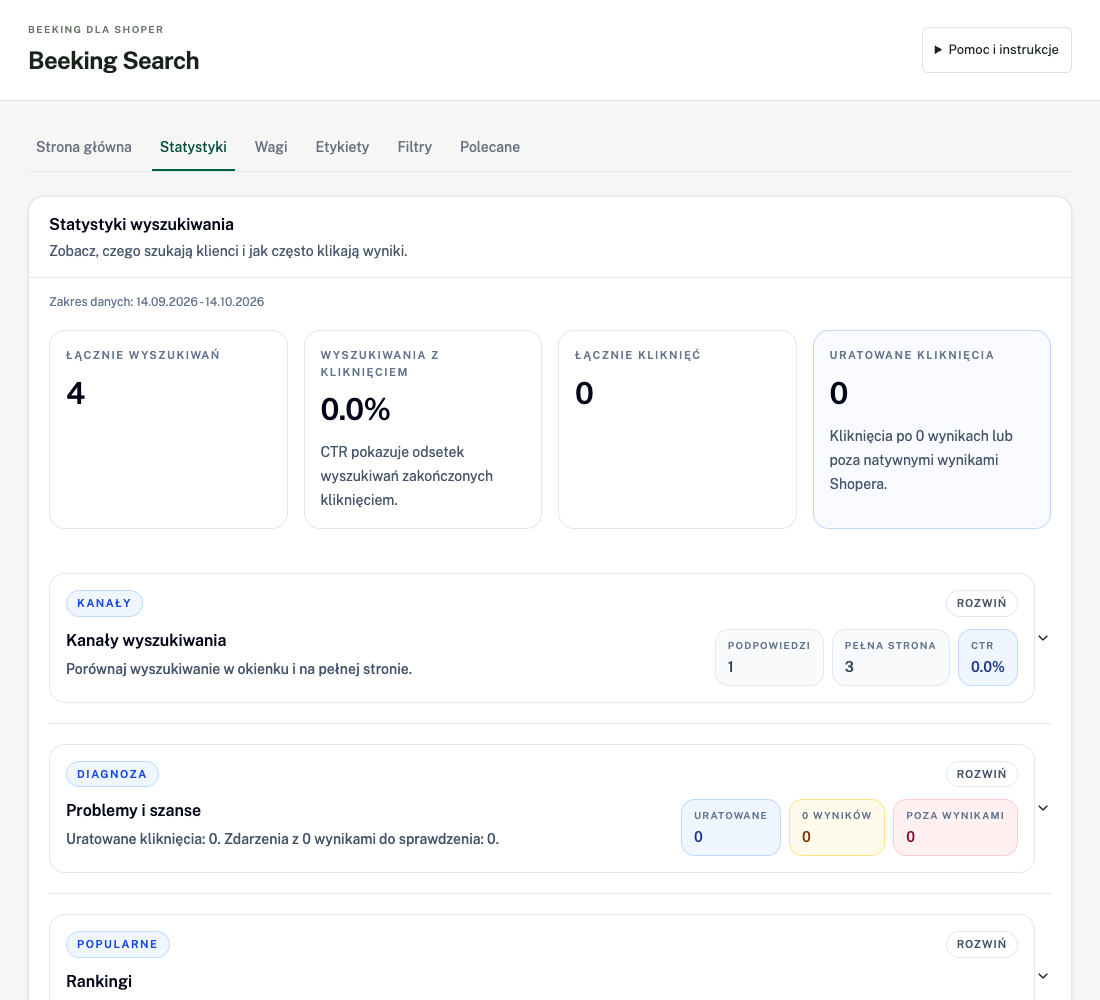
See what customers search for and whether they find relevant products.
Statistics show what customers need and what attracts their attention. Use them to decide which product descriptions to improve, what may be missing from your range and which searches to test. Opening this tab does not change search results.
A practical example
If a popular query often has no results, try it in your store and check product names and availability. If results receive few clicks, review relevance, images and ordering. CTR measures clicks, not purchases.
How to read the statistics
- Overview and daily trend
- Compare searches, clicks and changes over time. A click does not mean a purchase.
- Search channels
- Expand this section to compare where customers use search.
- Issues and opportunities
- Review queries that need attention. Check product availability and catalog names before changing settings.
- Rankings and monthly statistics
- Review popular queries, complex phrases, clicked products and categories. Expand the sections you need.
This is a read-only view; it does not change store settings.
02
Weights
Give selected products more visibility in search results.
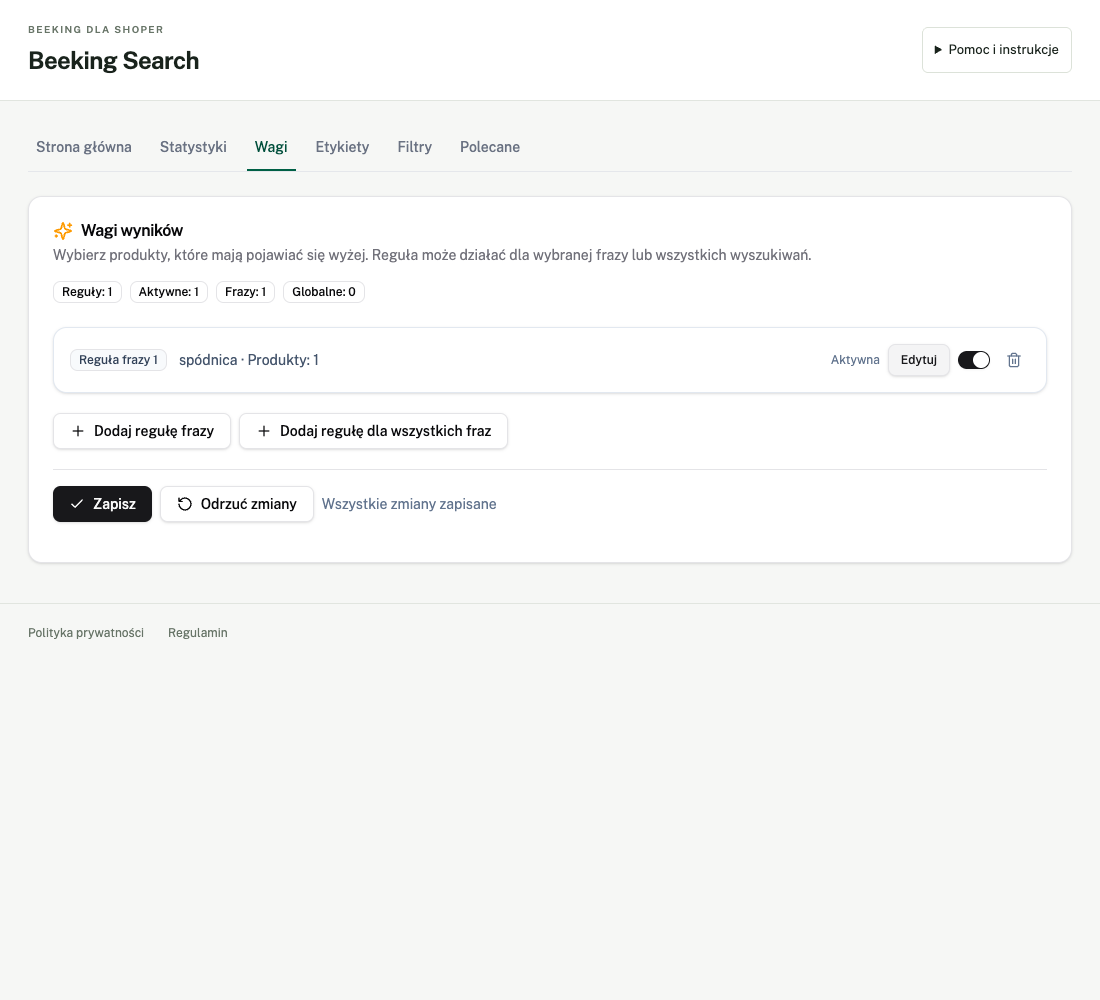
Weights influence product order when sorting by relevance. A selected product receives a boost and may appear higher in the results. Customers still see a regular product list without the rule itself.
A practical example
Want to highlight a particular skirt for people searching for “skirt”? Add it to a query rule. A global rule also boosts it for other queries. Boosting applies to products found by search; it does not guarantee first place or replace query matching and filters.
How to configure it
- Query rule
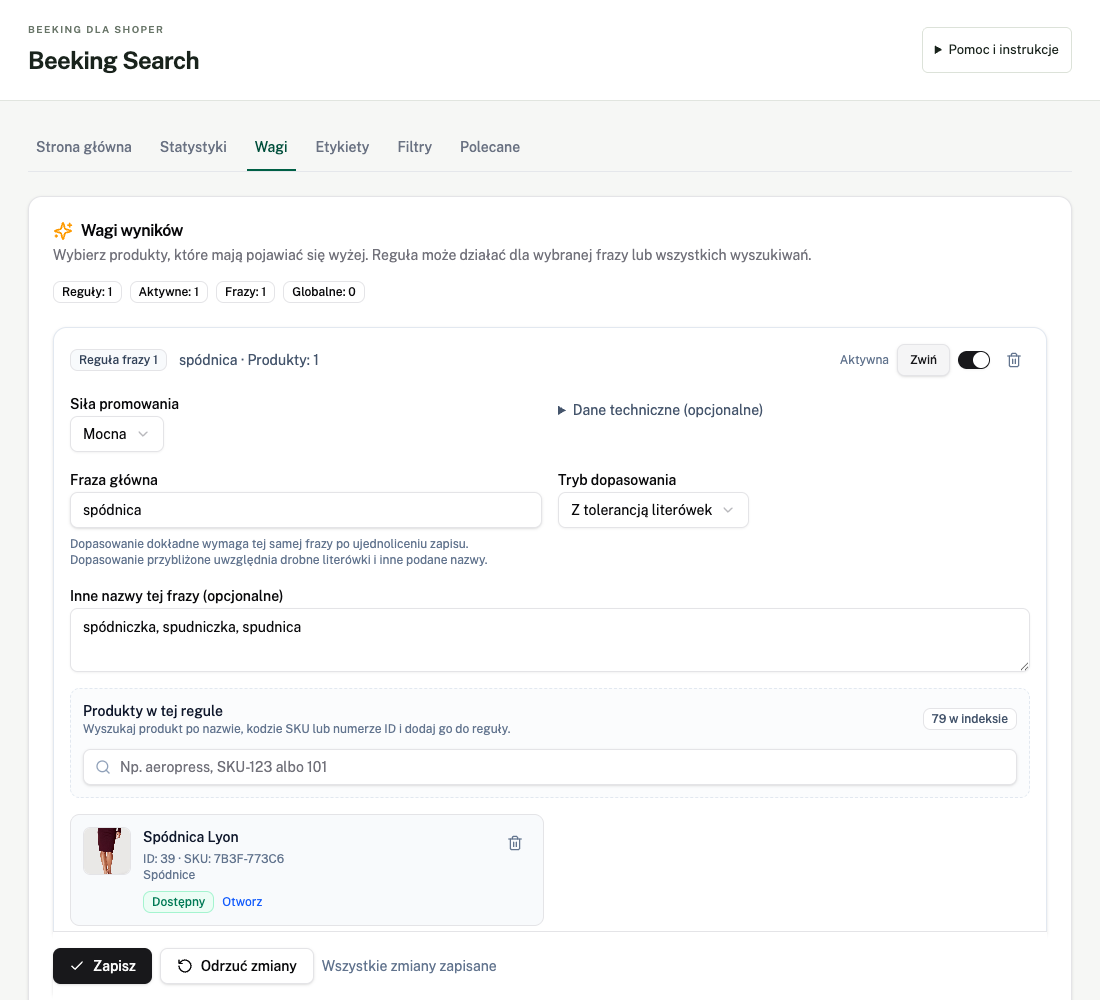
- Enter a query and select products to promote. Exact matches the normalized words, including within a longer query; Fuzzy allows minor typos. Aliases are additional versions of the query.
- Global rule
- Promotes selected products regardless of the query. Choose the boost level, then test several searches in your store.
- Managing rules
- Add or remove products and enable or disable rules. Technical IDs and technical mode are intended for advanced configuration.
Save changes using the weights panel button. Entering a query alone does not save the rule.
What does the rule editor look like?
03
Labels
Add product badges and manage their appearance.
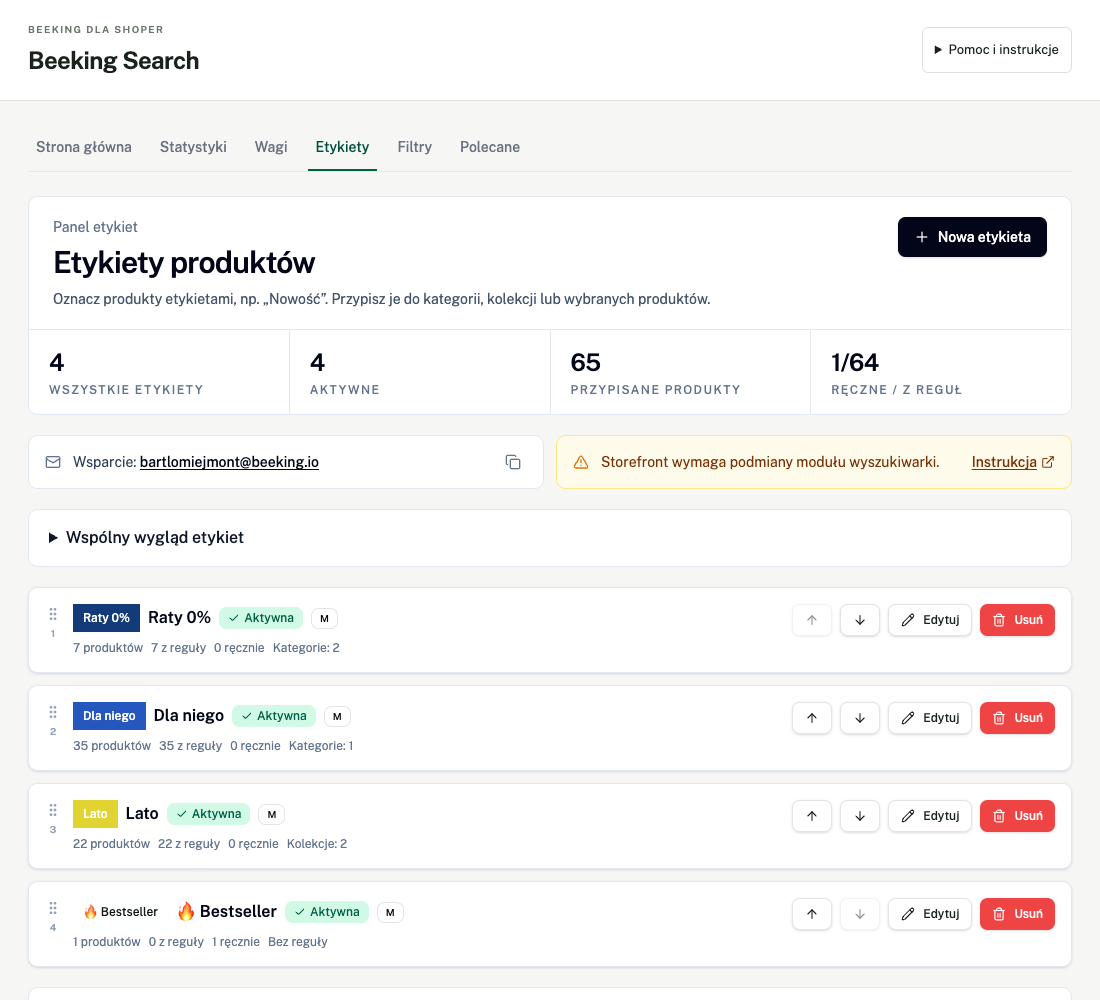
Labels are short badges on product images in search. Customers can spot a summer collection, a bestseller or an installment offer without opening a product page. Text and color highlight products; the badge itself changes neither price nor ranking.
A practical example
Assign “Summer” to a collection or choose individual products manually. In the screenshot, the yellow “Lato” badge highlights some trousers and the blue “Dla niego” badge marks another group. Label text is your message; a “0% installments” badge does not enable an installment payment method.
What customers see
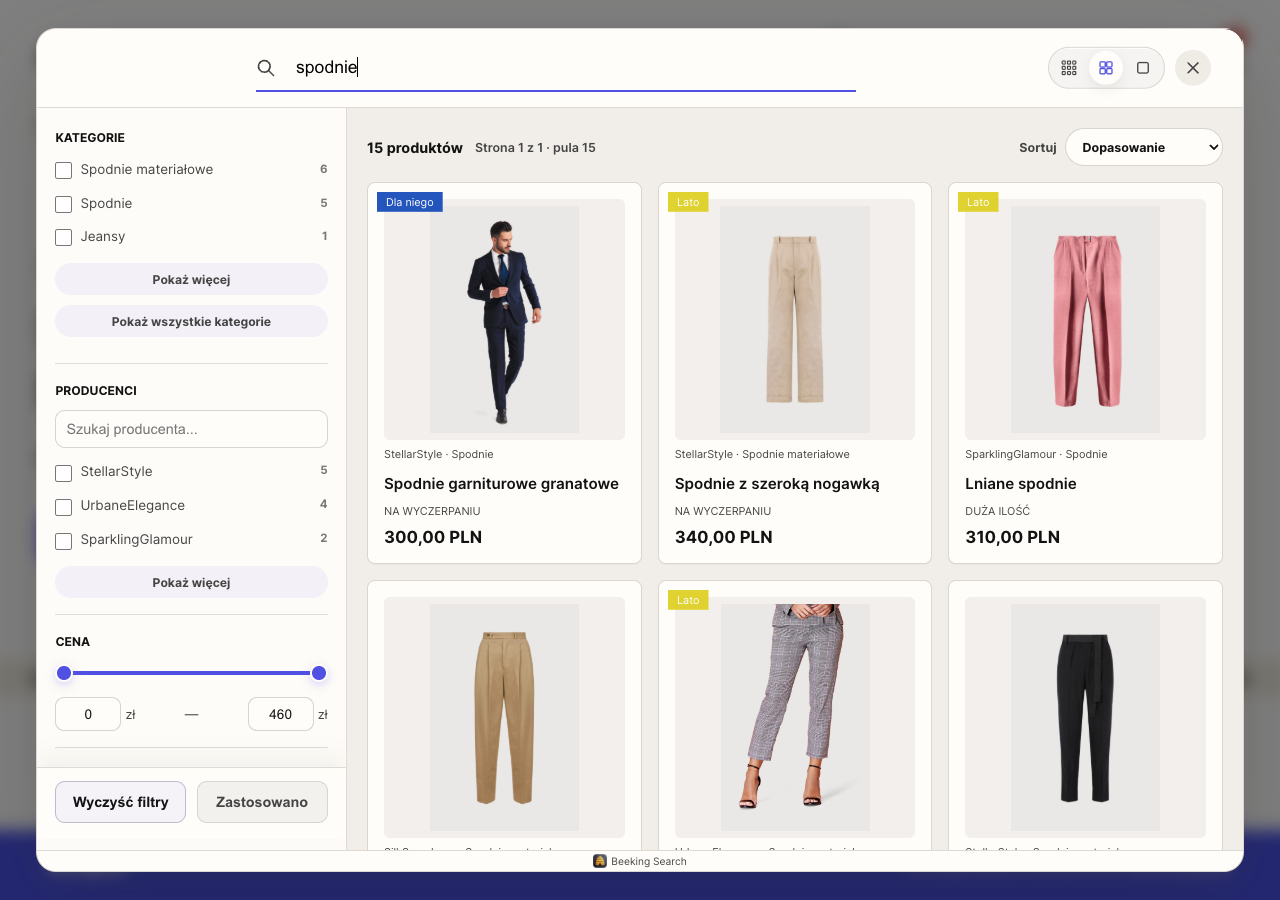
Actual search in the Shoper test store, 14 October 2026. Appearance depends on the store theme and configuration.
How to configure it
- Create and edit
- Choose “Nowa etykieta”, enter the content and active state, then set background, text and optional border colors. Use the preview to check the result.
- Assign products
- Choose categories or collections for an automatic rule. You can also enter product IDs separated by commas, spaces or new lines.
- Order and shared appearance
- Reorder labels in the list. Expand the shared appearance section at the top to adjust label styling; save it separately with “Zapisz wspólny wygląd”.
- Catalog and promotion label
- Refresh the catalog when new categories or collections are missing. Set a promotion text template using {discount}, fallback text and colors, then choose “Zapisz promocję”. Global disabling is available in the separate Beeking Labels app.
Confirm a label with “Zapisz”. Save shared appearance and promotions separately. Reordering saves when you move labels; wait for confirmation.
04
Filters
Choose the properties customers can use to narrow full-screen search results.
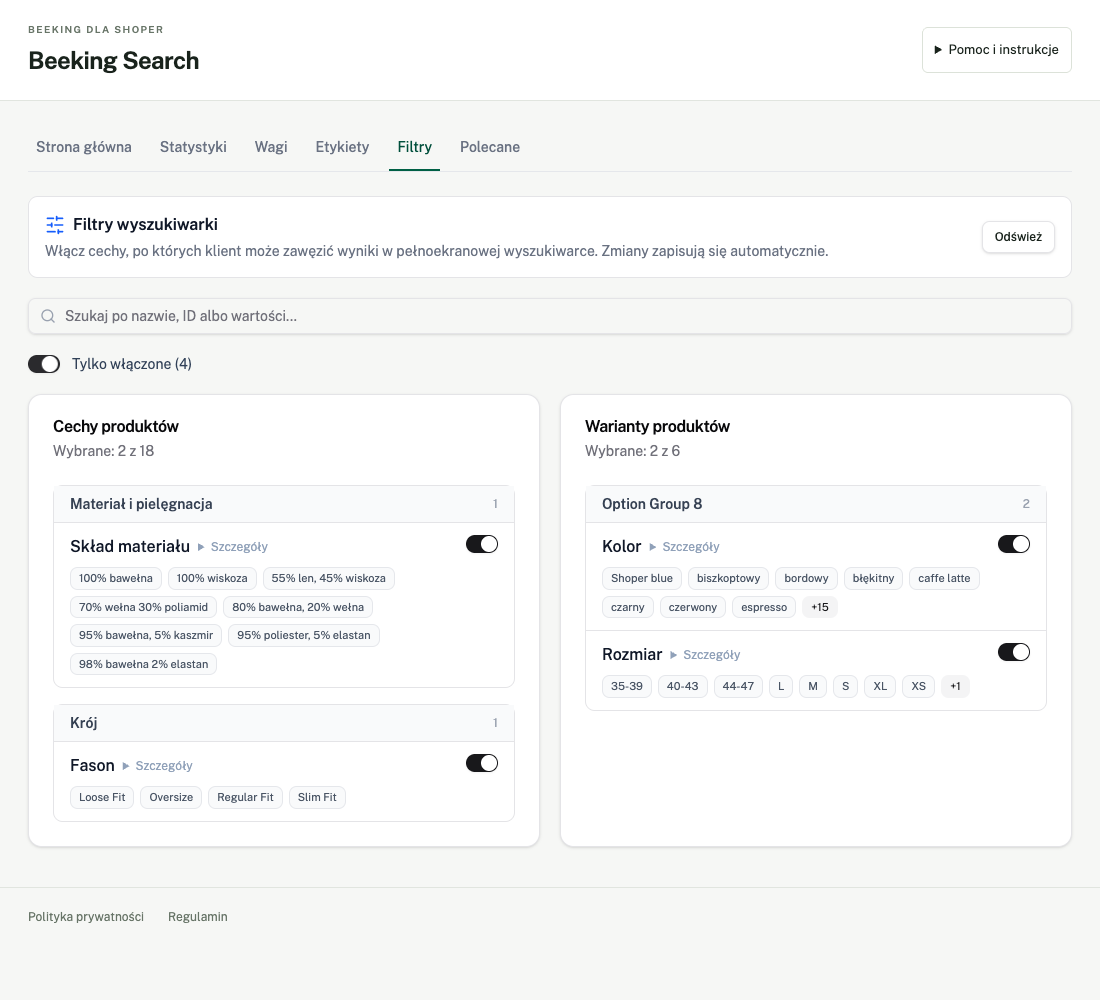
Filters let customers narrow results to products that meet their needs. Enabling a property makes it available in full search when the results contain relevant data. It does not select a value for customers or hide products from every visitor.
A practical example
In the test store, “sukienka” returned 16 products. Selecting black under Color and applying the filters reduced the list to 3. Customers can also narrow results by cut or material. Filters use catalog and variant data; the main image may show a different variant.
What customers see
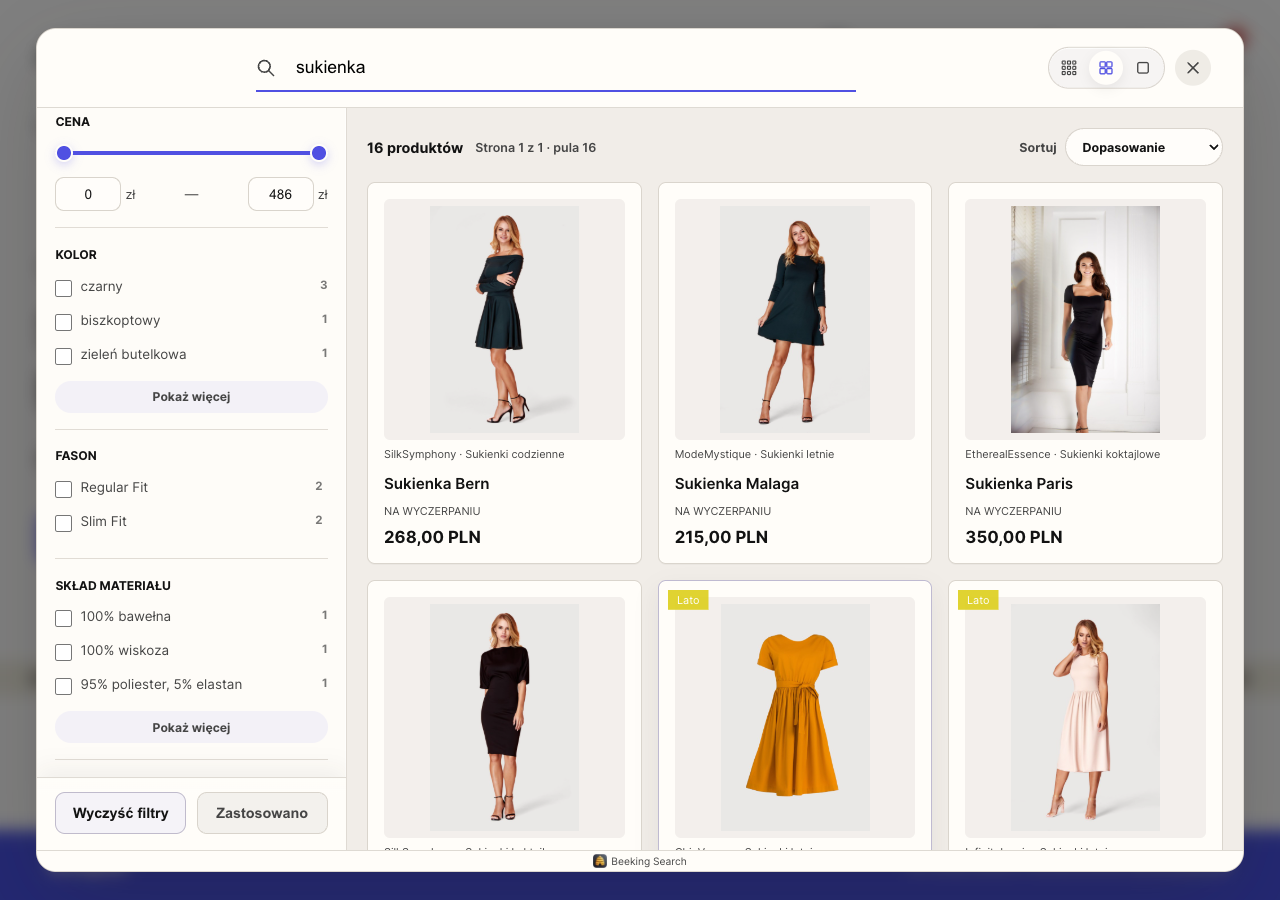
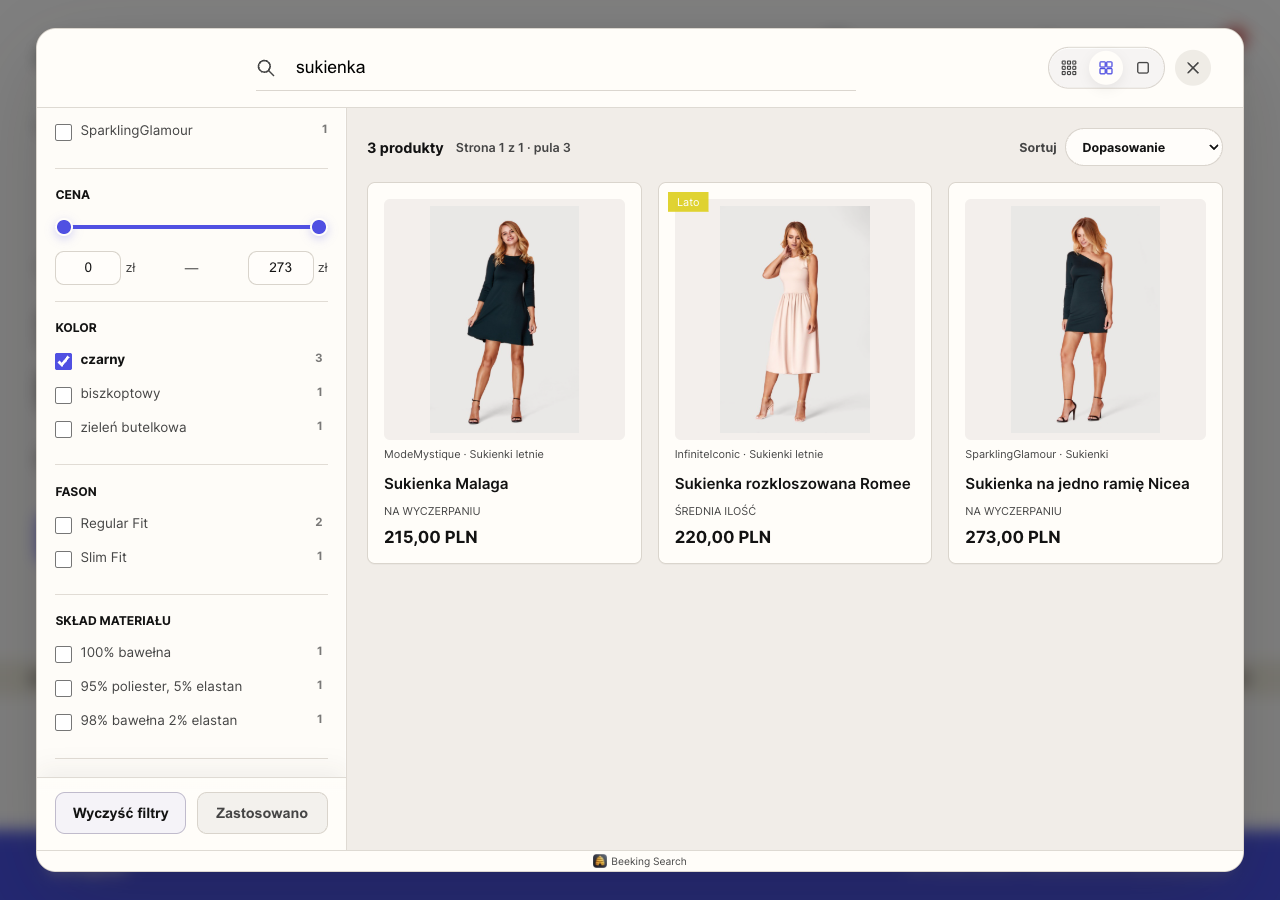
Actual search in the Shoper test store, 14 October 2026. Appearance depends on the store theme and configuration.
How to configure it
- Attributes
- Enable useful product properties. The list shows available attributes, sample values and the number of selected filters.
- Variants and options
- Enable useful options such as size or color when available in your store catalog.
- Search the list
- Find a property by name, ID or value. Missing synchronized values mean the panel has no values to display yet.
Switches save automatically. Wait for the save confirmation.
05
Recommendations
Choose which products, categories, queries and brands appear in recommendations.
Recommendations help customers start shopping before entering a query. Opening search can show selected products and shortcuts to categories and brands. Suggested queries offer ideas of what to search for. Use this space for seasonal ranges or important collections.
A practical example
Pin a product you want to show first and choose its position. Automatic selection can fill remaining slots. The screenshot shows starter products, categories and brands. Visible sections also depend on the search view; pinning a product here does not set its rank for every typed query.
What customers see
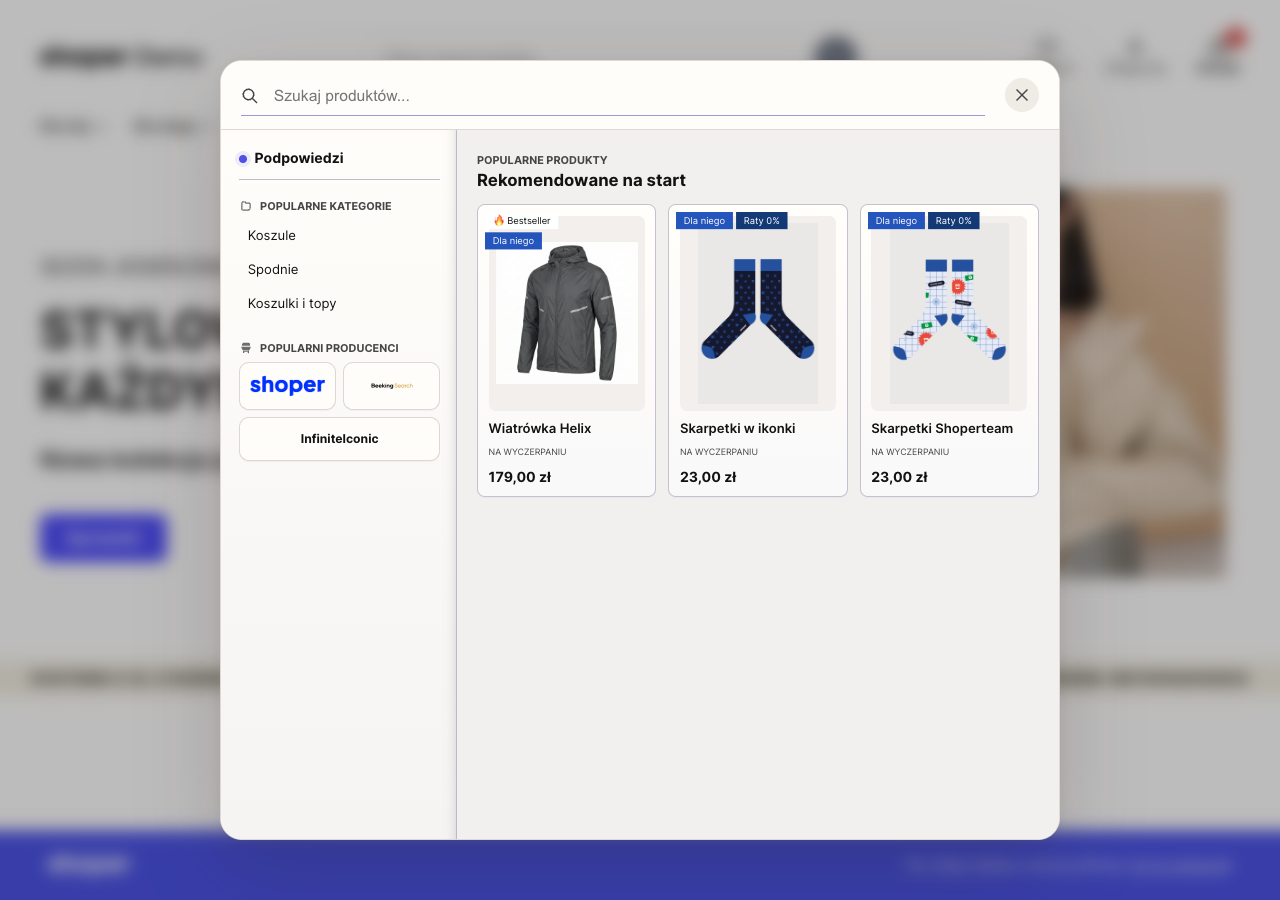
Actual search in the Shoper test store, 14 October 2026. Appearance depends on the store theme and configuration.
How to configure it
- Result limits
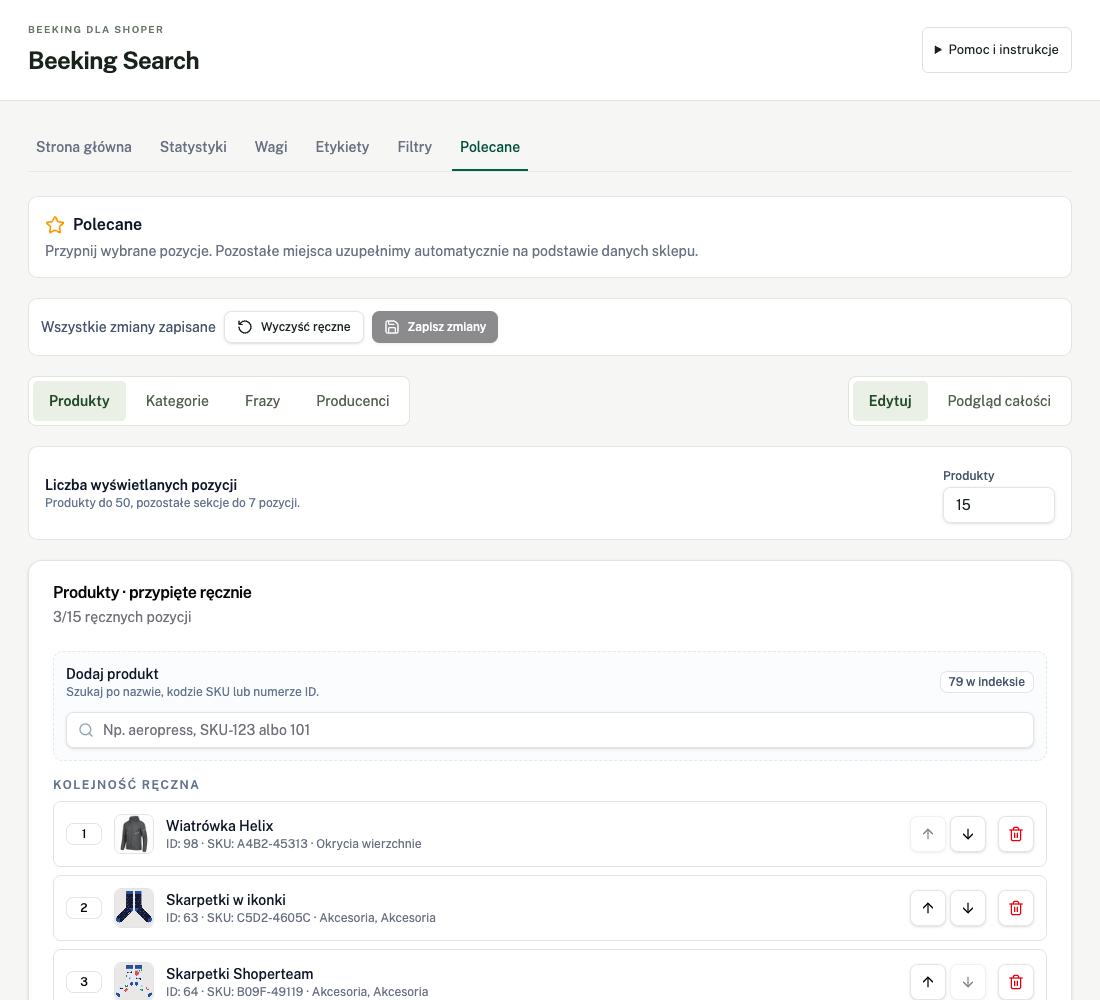
- Set each section’s size: up to 50 products and up to 7 categories, queries and brands.
- Manual items and order
- Search products, select categories and brands, or enter queries. Manual items come first. Use arrows to reorder and the bin to remove a pinned item.
- Automatic selection
- Automatic recommendations fill remaining slots using store data. You can hide and restore automatic suggestions.
- Preview and clearing
- The preview combines manual and automatic items. “Wyczyść ręczne” clears manual selections; it does not disable all recommendations.
Confirm with “Zapisz zmiany”, then check recommendations in your store search.
How are changes saved?
Weights and Recommendations require a save button. Filters save when toggled. In Labels, the form, shared appearance and order save separately. Check the confirmation before leaving a tab.