 Beeking
BEEKING OGLĄDAJĄCY / SHOPER
Viewer counter on the product page
Show customers how many people are viewing a product right now. Setup takes about 3 minutes.
Installing the app is not enough. The counter appears in your store only after you add the Beeking Oglądający module to the product page in the theme editor and publish the changes. The app works with Storefront themes. Download the PDF guide (Polish)
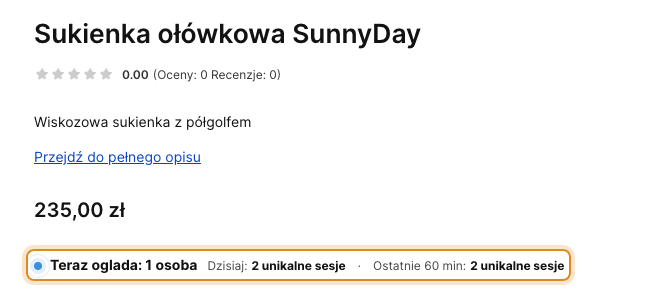
What it looks like in the store
The counter appears where you place the module, usually below the price. Numbers update live.
1. Open the theme editor
Go to theme editing
In the Shoper admin, expand “Wygląd i treści” (Appearance and content), then “Wygląd sklepu” (Store appearance), and click “Edycja szablonu graficznego” (Edit theme).
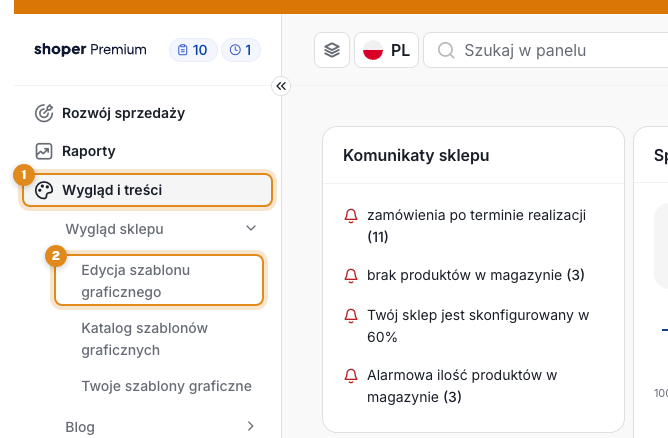
Shoper admin menu: Appearance and content → Store appearance → Edit theme (Polish interface). Click to enlarge. Open the visual editor
Click “Edytuj układ i styl szablonu” (Edit layout and style). Shoper Visual Editor opens.
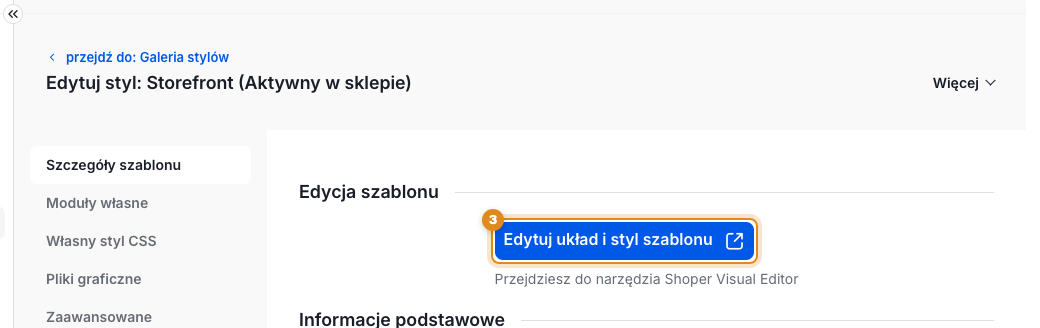
The “Edit layout and style” button on the theme page (Polish interface). Click to enlarge.
2. Add the module to the product page
Choose the “Produkt” page
In the top-left corner of the editor, open the page list and choose “Strony produktu” → “Produkt” (Product pages → Product).
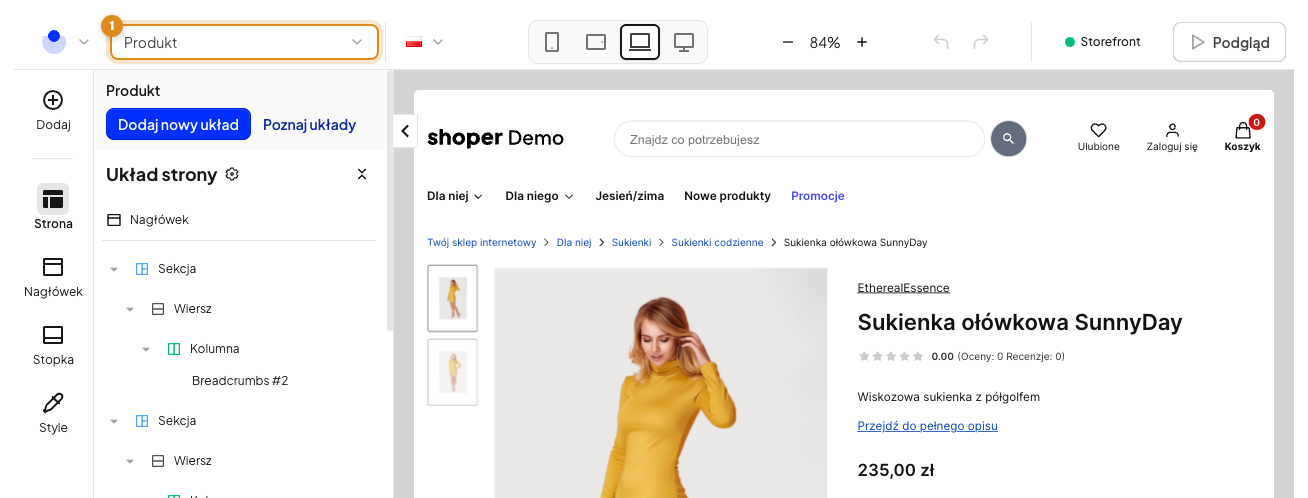
The editor with the product page layout open (Polish interface). Click to enlarge. Find the module in the library
Click “Dodaj” (Add) in the left bar and search for “Oglądający”.
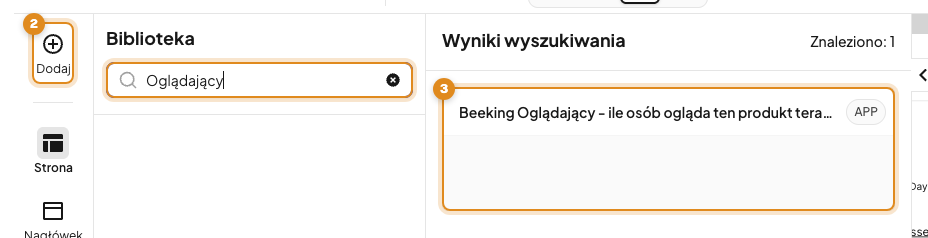
The “Beeking Oglądający” module in the library (Polish interface). Click to enlarge. Drag the module below the price
Drag the module tile and drop it into the highlighted area. The best place is below the price or above the add-to-cart button.
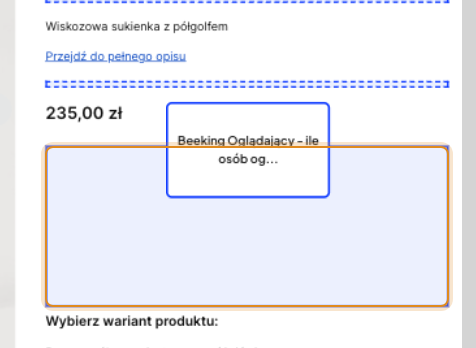
The highlighted drop area below the price while dragging. Click to enlarge.
3. Save and publish
Check the module settings and save
Settings open on the right. Keep “Pokazuj moduł na karcie produktu” (Show on product page) checked, optionally choose a preset and theme, then click “Zapisz” (Save).
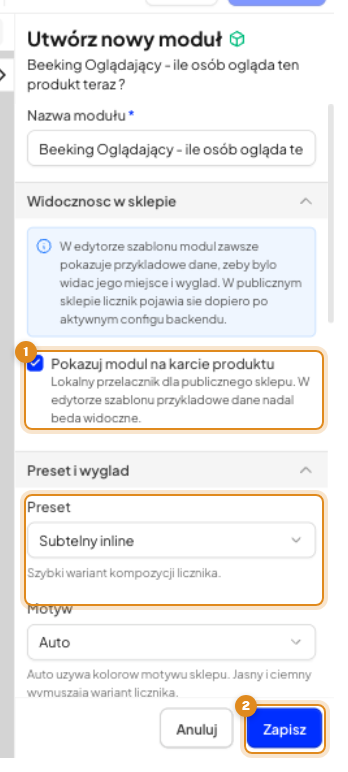
Module settings: storefront visibility, preset and the Save button (Polish interface). Click to enlarge. Publish the theme
Click “Opublikuj” (Publish) in the top-right corner. Only then does the counter go live. In the editor, the module always shows sample data (“3 people”).
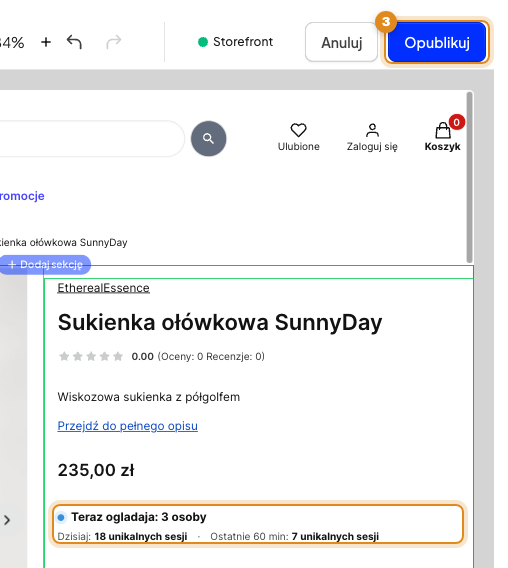
The module below the price in the editor and the Publish button (Polish interface). Click to enlarge. Check your store
Open the same product in a regular and a private browser window. After a few seconds you will see “Viewing now: 1 person” and today’s visits.
Settings worth knowing
- Preset, theme and accent color
- In the module settings in the editor. From a subtle text line to a bold card; the “Auto” theme follows your store colors.
- Text next to the number
- In the module settings. The default text handles Polish plural forms automatically.
- Minimum number of other viewers
- In the Beeking app panel. Default 1: the message appears when someone else is viewing. Set 0 to always show the counter.
- Visits today and in recent minutes
- In the Beeking app panel. Extra counters below the message and the time window length (60 minutes by default).
Troubleshooting
- The module is missing from the library
- Check that Beeking Oglądający is installed and that the store uses a Storefront theme.
- The module shows in the editor but not in the store
- Click Publish. Also check the “Show on product page” option and the counter switch in the app panel.
- No counter when I am the only viewer
- This is expected with a threshold of 1. Open the product in a second window or set the threshold to 0.
- Need help?
- Email bartlomiejmont@beeking.io and we will set up the module for you.