 Beeking
BEEKING SEARCH / SHOPER
Home page settings
A guide to the options on the first tab of Beeking Search: what they change in your store and how to save them.
Open the app in Shoper and select “Strona główna” (Home), then find “Ustawienia wyszukiwania” (Search settings). See how to open the panel →
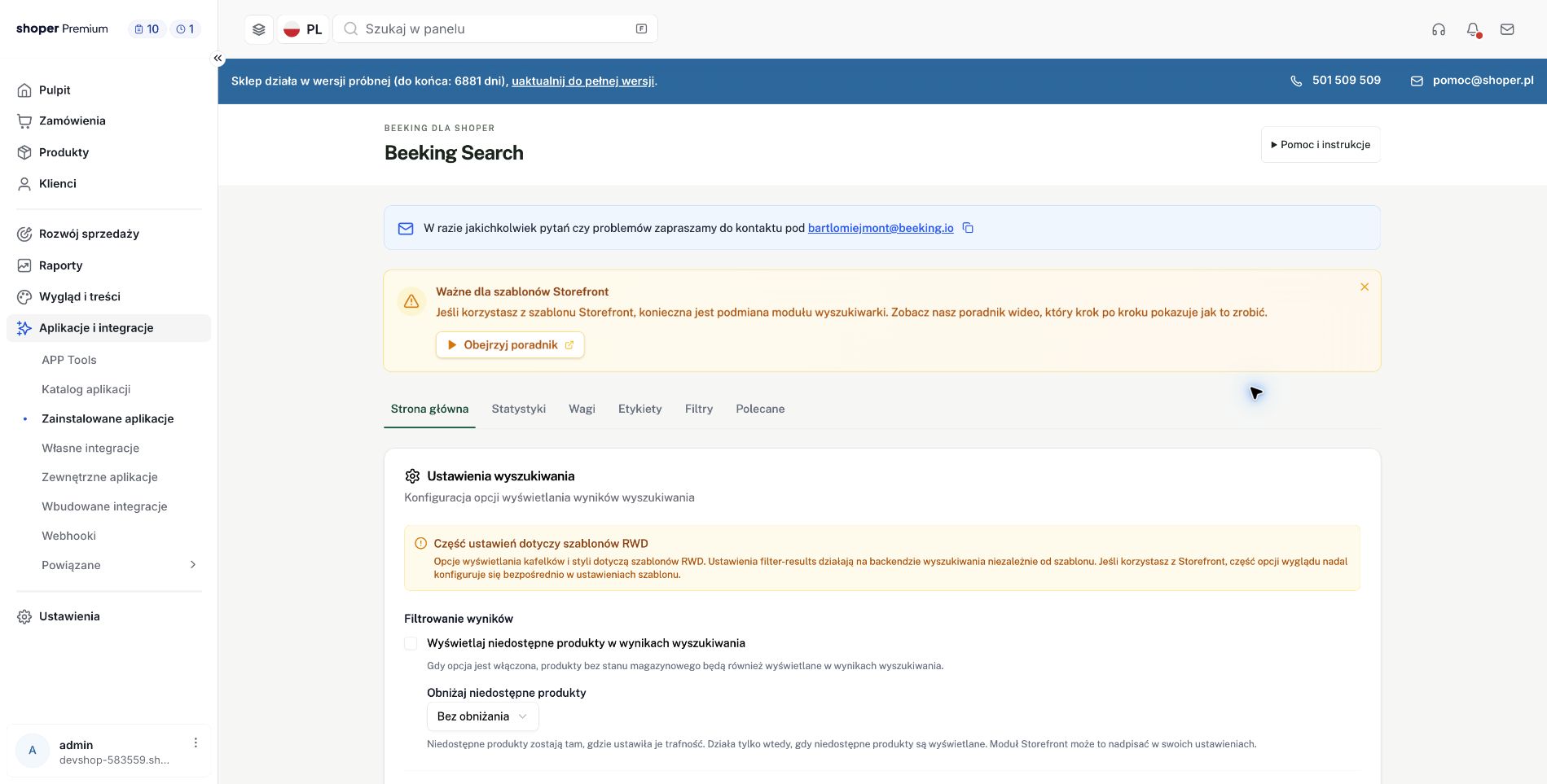
Filtering results
These settings control whether unavailable products appear in results and how high they can rank.
- Show unavailable products in search results
- Enable this to include unavailable products. Disable it to show only available products. This does not change whether Shoper allows a product to be purchased.
- Demote unavailable products
- Applies when unavailable products are included. “Bez obniżania” keeps relevance order. “Lekko” reserves the first 3 positions for available products, and “Średnio” the first 9, when enough are available. “Na koniec listy” places unavailable products after all available ones. If fewer products are available, unavailable products follow them. A Storefront module can override this setting.
Displaying results
Choose which additional information customers see with results.
- Show stock information on result cards
- Adds stock information to product cards. It does not change inventory or which unavailable products are included.
- Hide matched categories in search results
- Hides matching category suggestions above the results. It does not remove store categories or exclude products.

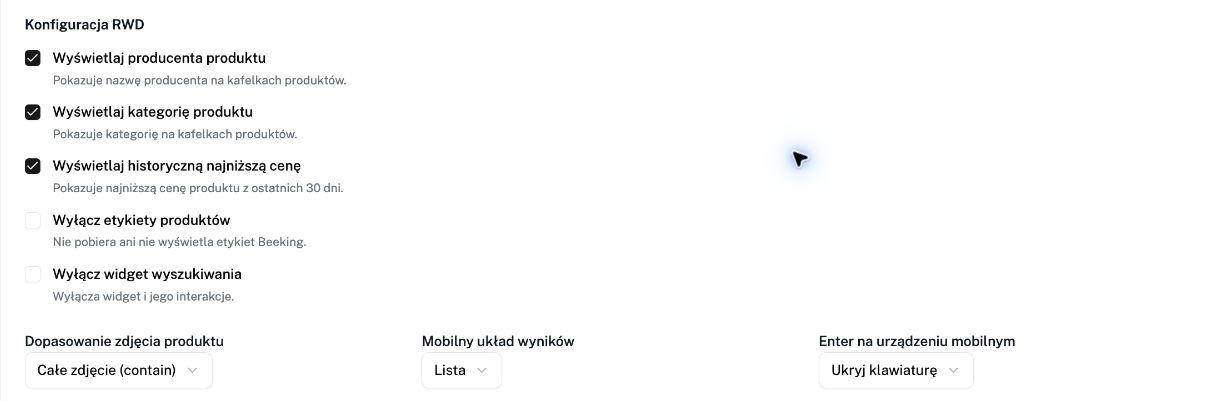
RWD configuration
Appearance options apply to search in RWD themes. In Storefront, some options are configured in the theme or module instead.
- Show product manufacturer
- Shows the manufacturer name on the product card when it is available in catalog data.
- Show product category
- Shows the category on the product card.
- Show the historical lowest price
- Shows the lowest price from the last 30 days using product data. Check the card in your store after changing this setting.
- Disable product labels
- Stops loading and displaying Beeking labels in RWD search. Saved labels and their assignments remain in the Labels panel.
- Disable the search widget
- Disables the RWD widget and its interactions. To turn off Beeking search entirely, use the separate “Wyłącz wyszukiwarkę Beeking” option at the bottom of the page.
- Product image fit
- “Całe zdjęcie (contain)” shows the whole image, sometimes leaving space around it. “Wypełnij kafelek (cover)” fills the image area and may crop the edges.
- Mobile results layout
- Choose “Siatka” (grid), “Lista” (list) or “Minimalny” (minimal) for full search results on mobile. Check image, name and price readability on a phone.
- Enter on mobile
- “Ukryj klawiaturę” hides the keyboard and keeps the customer in search. “Przejdź do wyników Shoper” opens the Shoper results page when Enter is pressed.
RWD styles and primary color
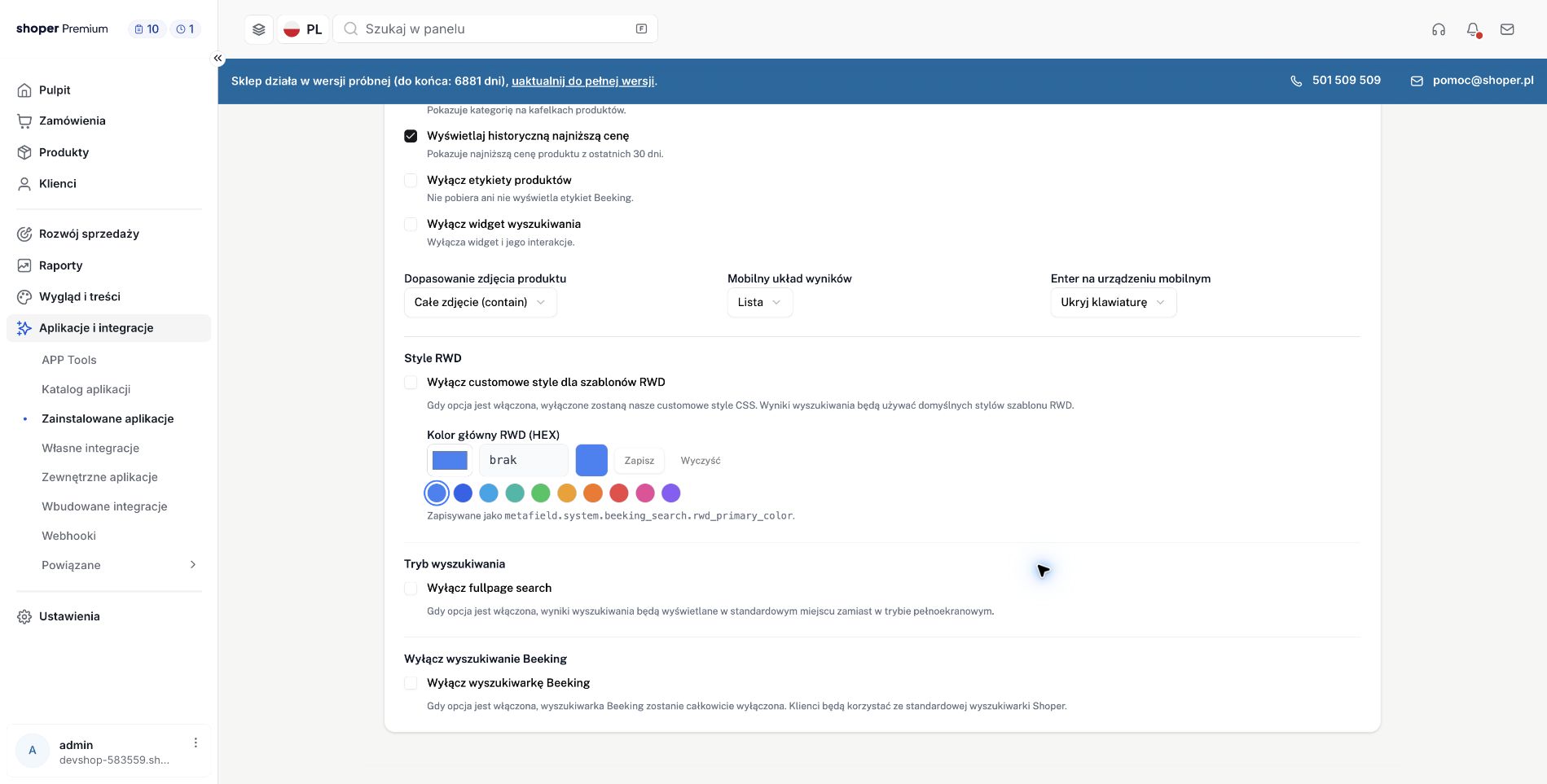
Match RWD search to your store appearance.
- Disable custom styles for RWD themes
- Enable this to turn off additional Beeking styles and use the RWD theme’s default styles for results.
- RWD primary color (HEX)
- Choose a color using the picker or presets, then click “Zapisz”. Picking a color alone changes only the form preview. To remove a custom color, click “Wyczyść” and then “Zapisz”.
Search mode and disabling
These checkboxes disable their respective features when checked.
- Disable fullpage search
- Turns off full-screen search and displays results in the standard location. It does not turn off Beeking search entirely.
- Disable Beeking search
- Turns off Beeking search so customers use Shoper’s standard search. Uncheck it to enable Beeking again, then test search in your store.
Saving and checking changes
Checkboxes and dropdowns save as soon as they change. Wait until “Zapisywanie…” disappears. If an error appears, check the value and try again. The RWD primary color requires its own “Zapisz” button, including after clearing the color.
After saving, refresh your storefront and try several searches, including on a phone. Change one option at a time to see its effect. Synchronization information above the settings tracks catalog loading and indexing; it is not a settings save control.