 Beeking
BEEKING SEARCH / SHOPER
Open the panel from Shoper
Access Beeking Search settings directly from your store’s Shoper admin panel.
Launch the app from Shoper each time you return. Shoper passes the information needed to authorize access to the correct store.
Step by step
Sign in to your store admin
Open your store’s admin address, usually https://your-store.com/admin/, and sign in with an administrator account that has access to apps.
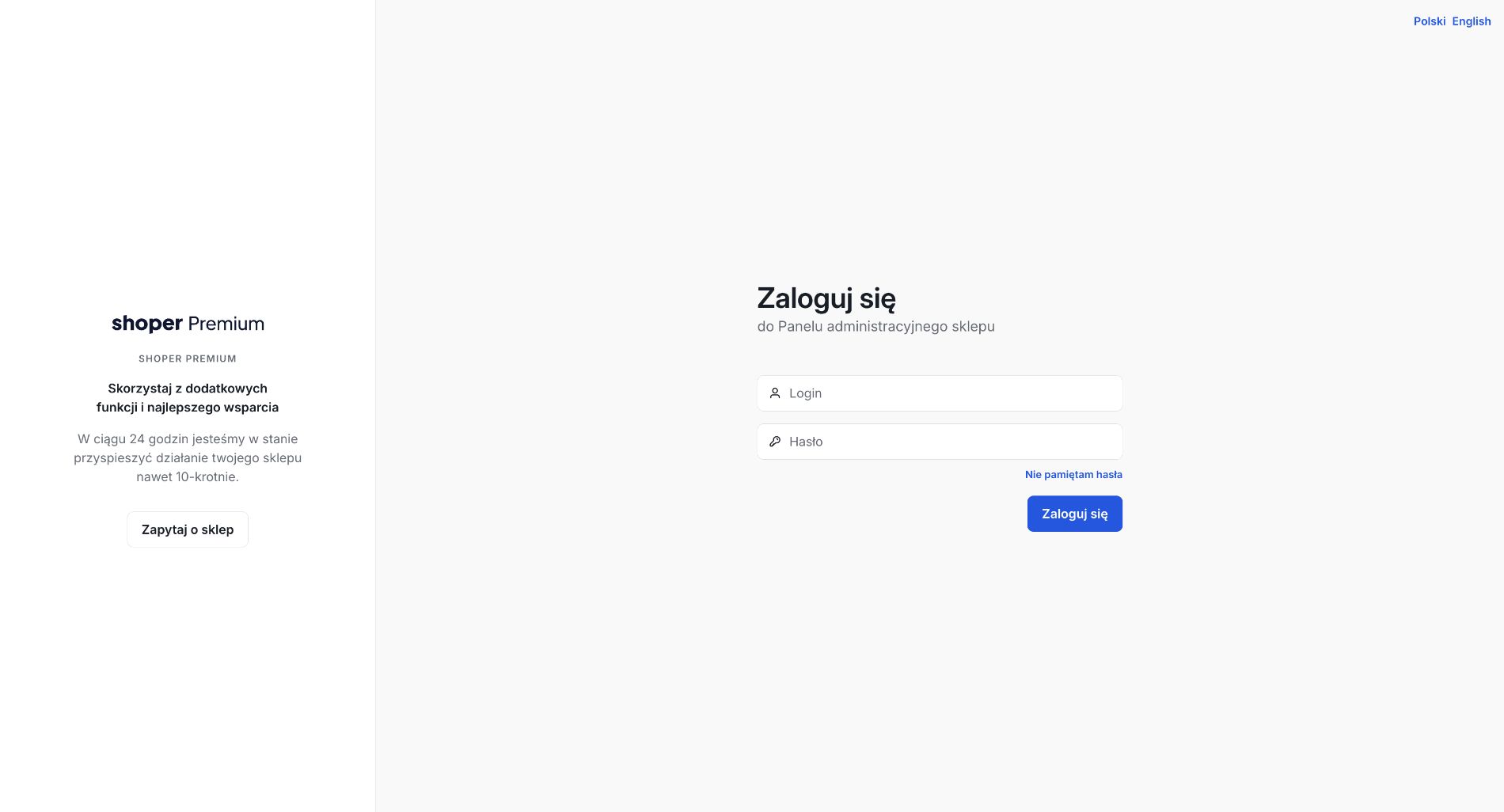
Shoper admin sign-in screen in the test store, 22 October 2026 (Polish interface). Click to enlarge. Go to installed apps
In the left menu, expand “Aplikacje i integracje” (Apps and integrations), then click “Zainstalowane aplikacje” (Installed apps). This opens your store’s app list.
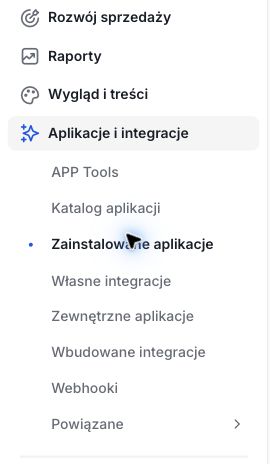
Left menu: Apps and integrations → Installed apps (Polish interface). Click to enlarge. 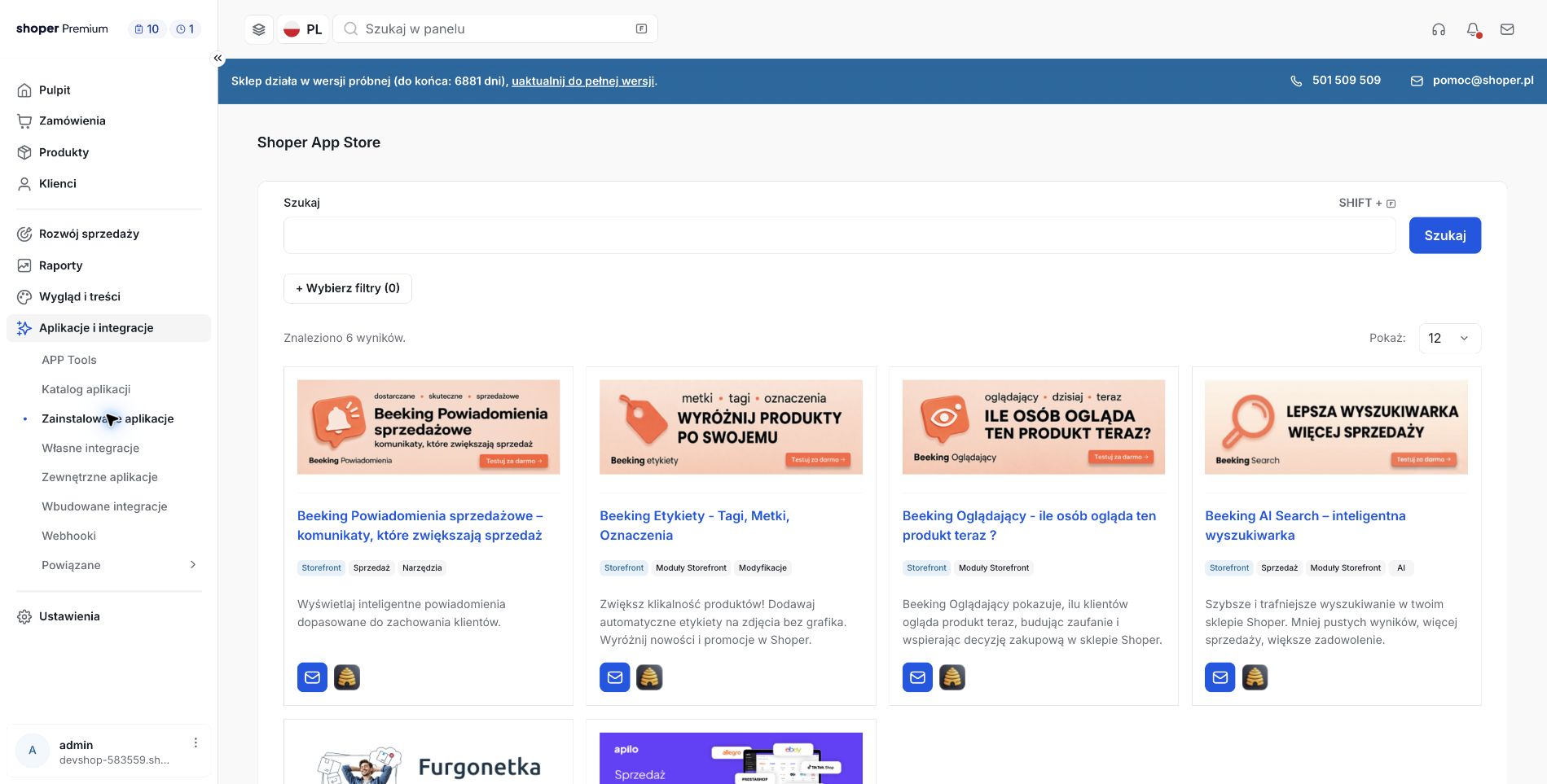
Installed apps. In this store, Beeking AI Search is the fourth card in the first row. Click to enlarge. Open Beeking Search
Find the “Beeking AI Search – inteligentna wyszukiwarka” card. Below its description, click the beehive icon beside the blue envelope. This is the “Admin Panel Beeking Search” link; it opens the app panel inside Shoper. Wait for it to load.
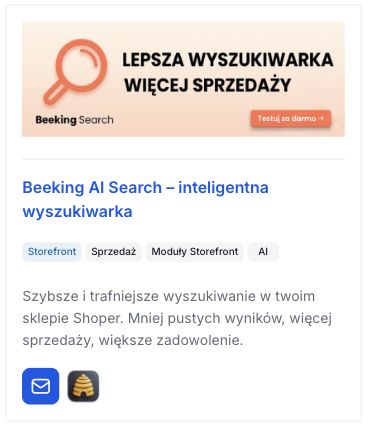
Panel entry: the beehive icon below the description. The blue envelope beside it is for contacting support. Click to enlarge. Choose an app tab
Search settings are on “Strona główna” (Home). Use the top navigation in Beeking to open other features.
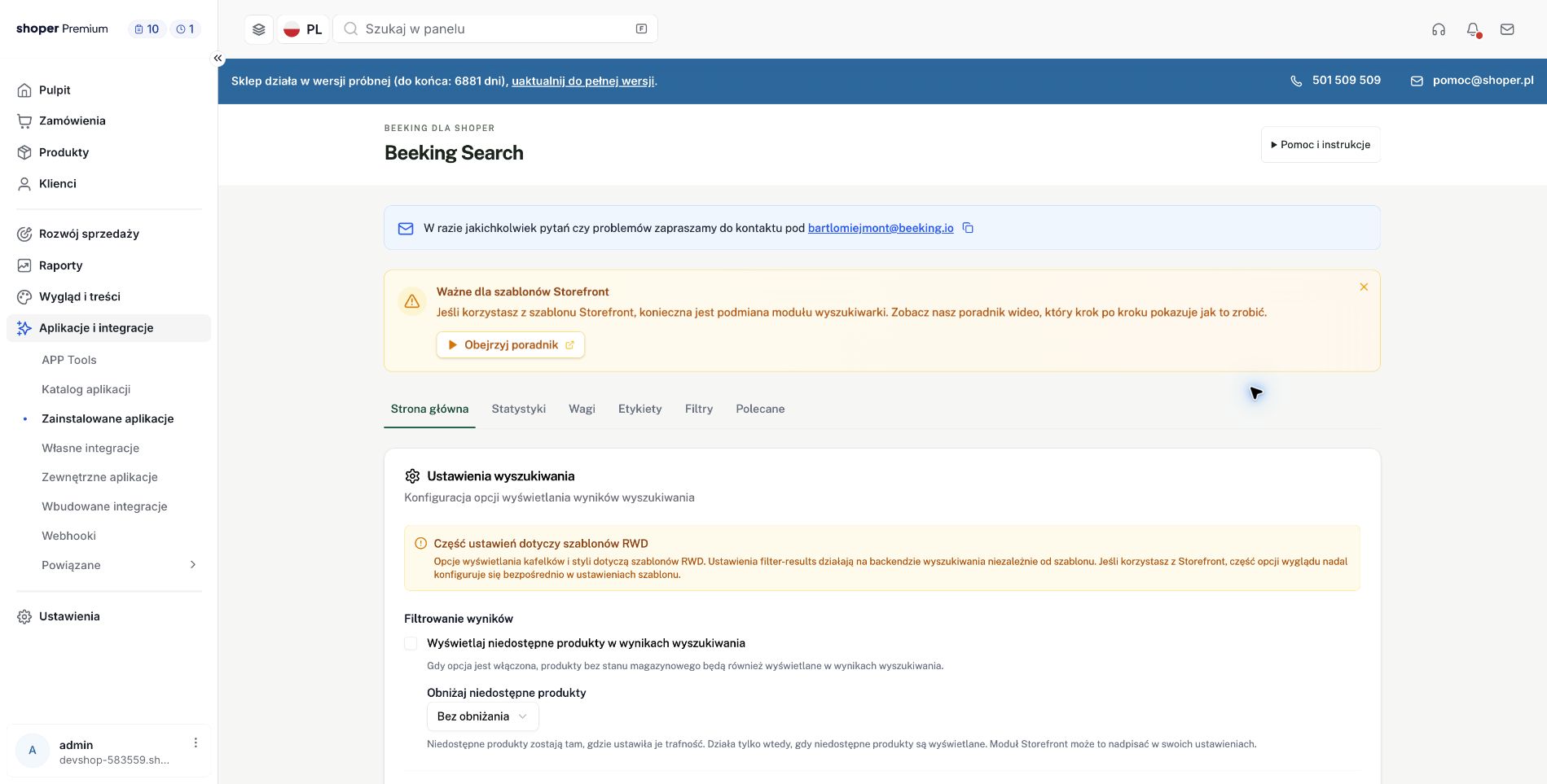
Beeking Search opened inside Shoper on the Home tab, 22 October 2026 (Polish interface). Click to enlarge.
What is in the panel?
- Home
- Settings for results, appearance and search mode, plus catalog synchronization information.
- Statistics, Weights, Labels, Filters and Recommendations
- Separate tabs for search analysis and configuration. Availability depends on the app and store settings. Read the feature guides →
Access problems
- The app is missing from the list
- Check that you are in the correct store and that Beeking Search is installed. If your account cannot access apps, ask the store administrator to check your permissions.
- Missing parameters or sender verification message
- Close Beeking and launch it again from the Shoper app list. A Beeking panel address entered manually or saved as a bookmark is not enough to authorize access.
- The session expired or the panel will not open
- Sign in to Shoper again and launch the app from its panel. If the issue persists, contact Beeking support with your store address and the error message. Do not send the full launched panel URL with its access parameters.