 Beeking
BEEKING ETYKIETY / SHOPER
Labels on product images
Highlight products with “New”, “0% installments”, “24h delivery” or any message of your own.
Labels appear in your store after two steps: create a label in the app panel and add the Beeking Etykiety module to your Storefront theme header once. In RWD themes there is no module to add; we enable labels for the whole store on request. Download the PDF guide (Polish)
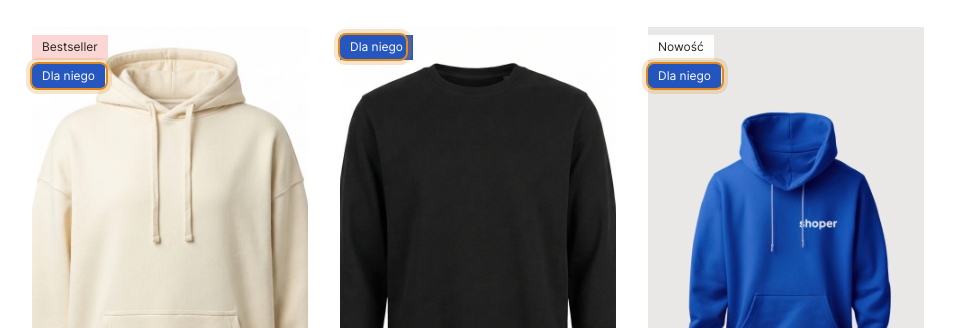
What it looks like in the store
Beeking labels appear in the corner of the product image, next to Shoper badges such as “New” or “Bestseller”.
1. Open the app panel
Go to installed apps
In the Shoper admin, expand “Aplikacje i integracje” (Apps and integrations) and click “Zainstalowane aplikacje” (Installed apps).
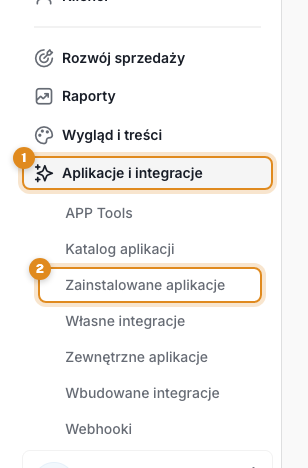
Menu: Apps and integrations → Installed apps (Polish interface). Click to enlarge. Open Beeking Etykiety
On the “Beeking Etykiety” card, click the beehive icon. Always open the panel from Shoper, which passes the data that authorizes access to your store.
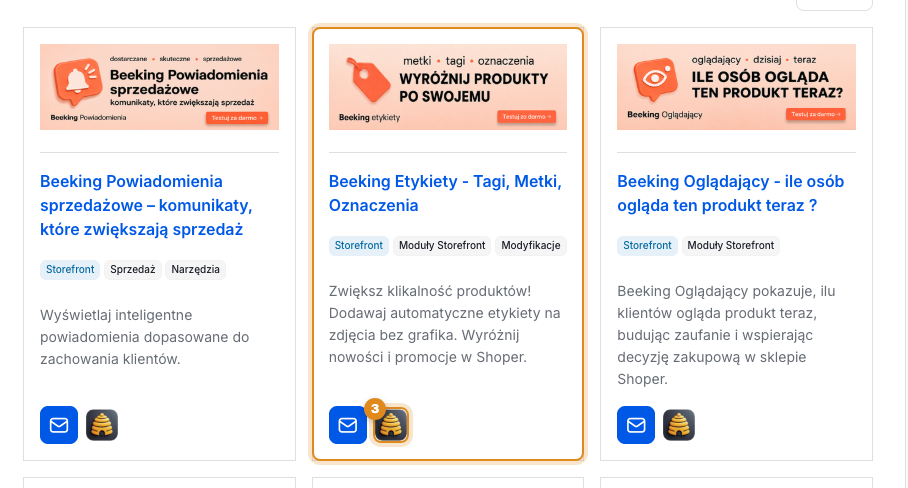
The Beeking Etykiety card and the beehive icon that opens the panel (Polish interface). Click to enlarge.
2. Create a label
Click “Nowa etykieta”
The list shows existing labels, assigned product counts and their order. When a product has several labels, the list order decides.
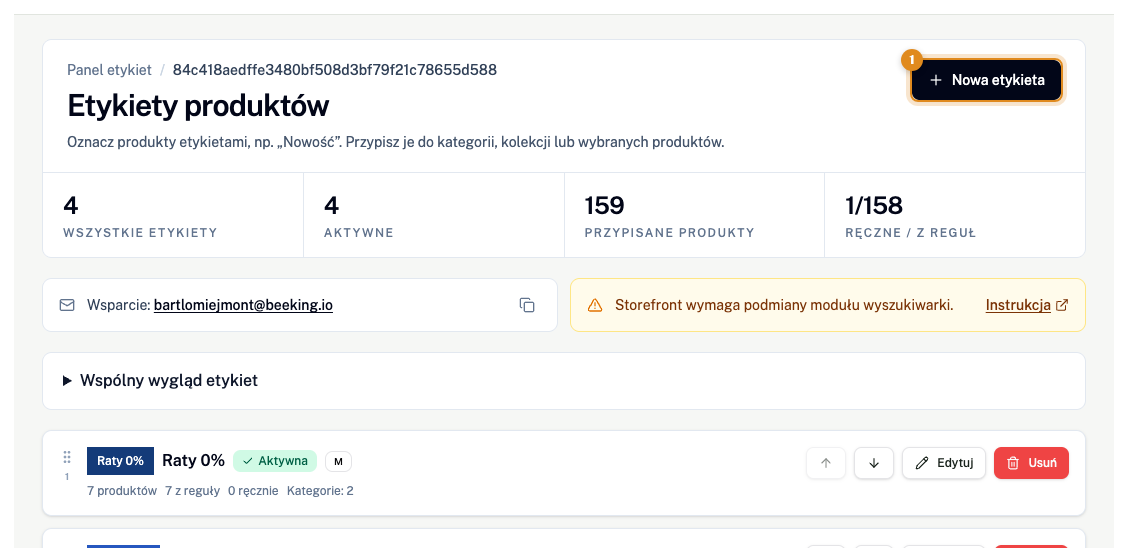
The Beeking Etykiety panel with the “New label” button (Polish interface). Click to enlarge. Enter the text and choose colors
“Nazwa” (name) is for you only; “Tekst na etykiecie” (label text) is shown to customers. Set background and text colors; the preview on the right shows the result.
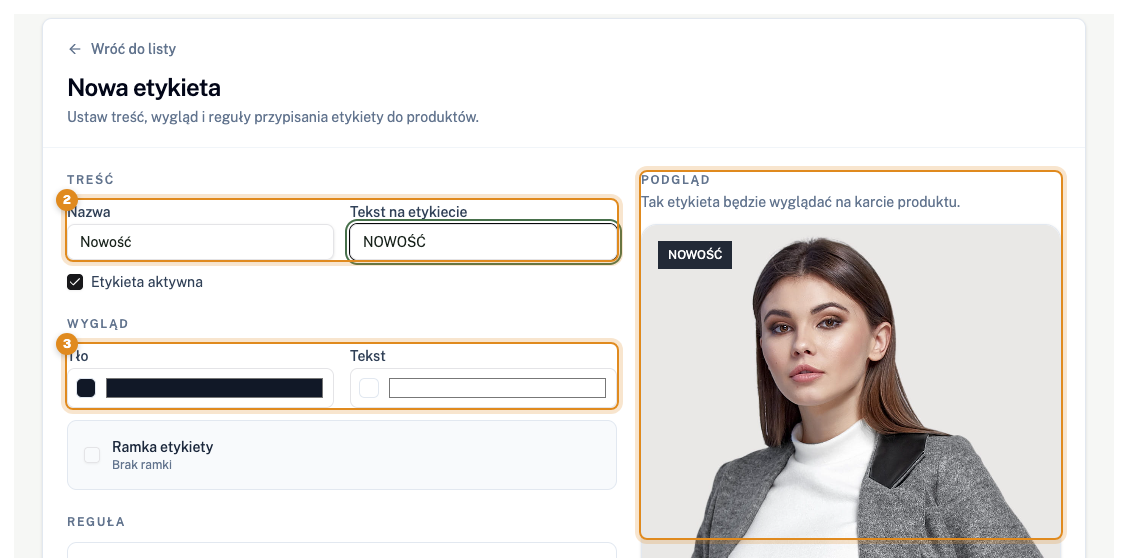
The new label form with a preview (Polish interface). Click to enlarge. Assign products and save
In “Reguła” (Rule), select categories or switch the list to collections. Add individual products in “Manualne ID” (IDs separated by commas, spaces or new lines). Click “Zapisz” (Save).
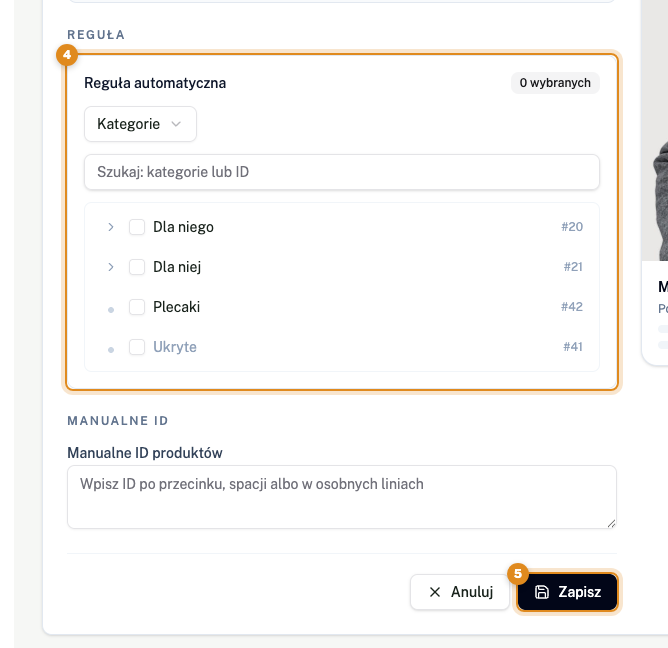
Automatic rule, manual product IDs and the Save button (Polish interface). Click to enlarge.
3. Add the module to the header (once)
Open header editing
In Shoper, open Appearance and content → Store appearance → Edit theme → Edit layout and style, then click “Nagłówek” (Header) in the editor’s left bar. A header module works on every store page.
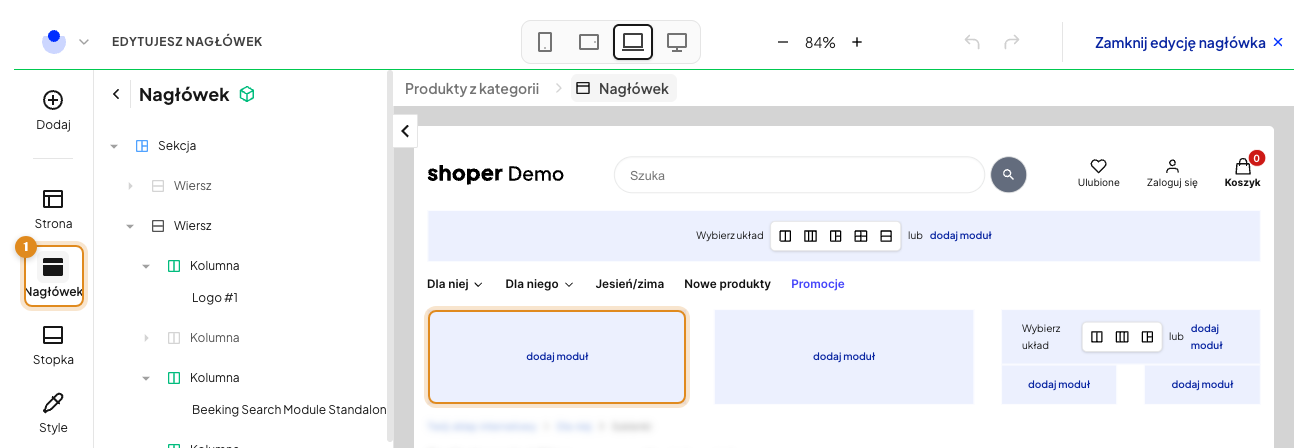
Header editing mode with empty “add module” columns (Polish interface). Click to enlarge. Drag the Beeking Etykiety module
Click “Dodaj” (Add), search for “Etykiety” and drag the tile into any empty header column. The module takes no visible space in the store.
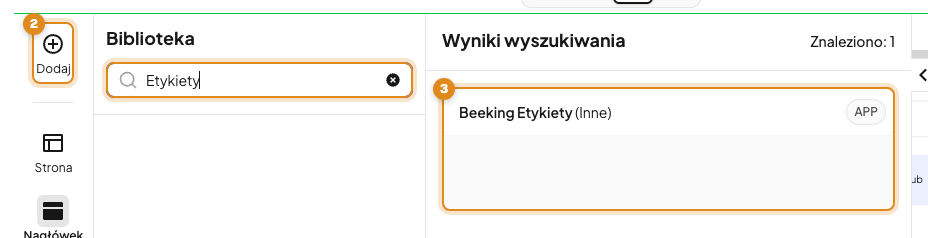
The Beeking Etykiety module in the library (Polish interface). Click to enlarge. 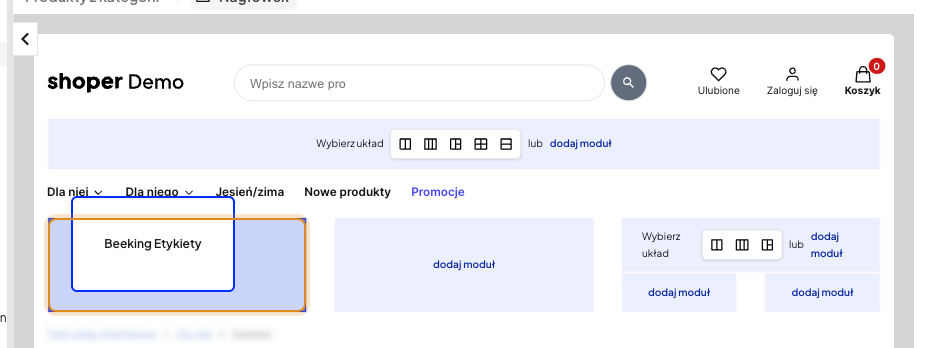
A highlighted header column while dragging. Click to enlarge. Save the module and the header
Keep “Aktywuj etykiety”, “Pokazuj na listach produktów” and “Pokazuj na karcie produktu” checked, click “Zapisz”, then “Zapisz nagłówek” (Save header). The change goes live immediately.
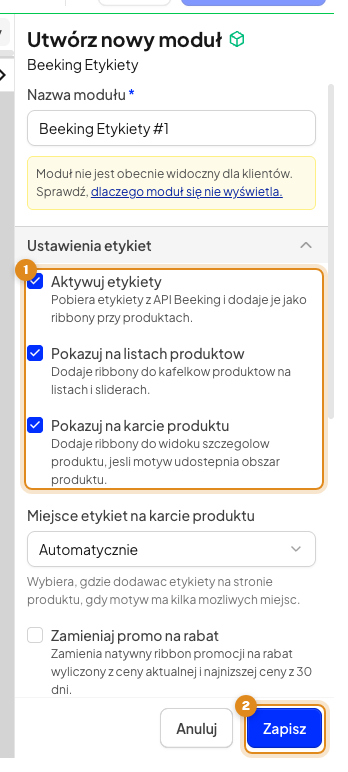
Beeking Etykiety module settings (Polish interface). Click to enlarge. 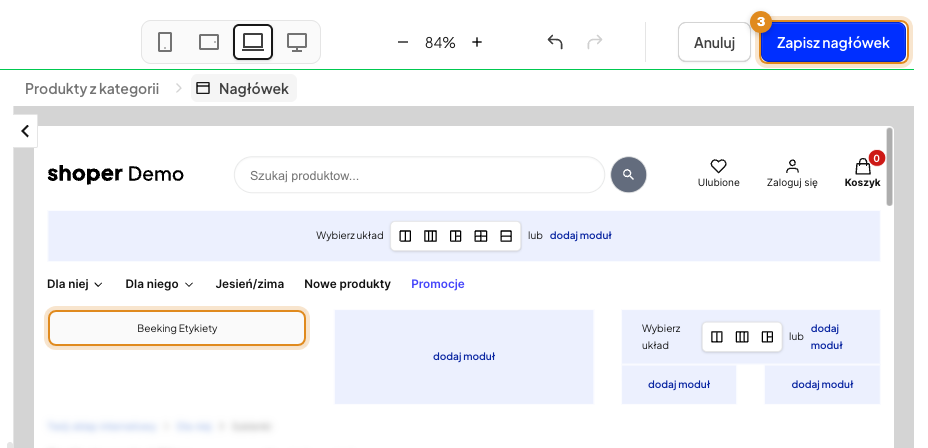
The module in the header and the “Save header” button (Polish interface). Click to enlarge.
Module settings
- Label position on the product page
- “Automatycznie” picks the place itself. You can force: next to Shoper badges, on the gallery or both.
- Replace promo with discount
- Shows a discount such as “-20%” instead of “Promotion”, calculated against the lowest price from the last 30 days.
- Round the discount down
- To full tens: 19% shows as 10%, 55% as 50%.
- Show discount amount
- Shows an amount such as “-50 zł” instead of a percentage.
- Shared label appearance
- In the app panel, above the label list. Changes size, rounding and style of all labels at once; save it with “Zapisz wspólny wygląd”.
Troubleshooting
- The label does not appear in the store
- Check that the Beeking Etykiety module is in the header and that the header was saved. Refresh the page in a private window.
- A label is missing on a specific product
- Check that the label is active and the product belongs to the selected category or collection. New categories missing? Click “Odśwież katalog” in “Katalog i synchronizacja”.
- All labels disappeared
- Check in the app panel whether “Wyłącz Beeking Etykiety” (Disable Beeking Labels) is checked.
- Labels do not fit your theme
- Email bartlomiejmont@beeking.io. We will adapt labels to your theme at no extra cost.